

Building Content-Adaptive Interfaces with Google's A2UI
29th December 2025 • 10 min read — by Aleksandar Trpkovski
Play audio summary
How to build adaptive interfaces where the AI decides not just what to show, but how to style it.
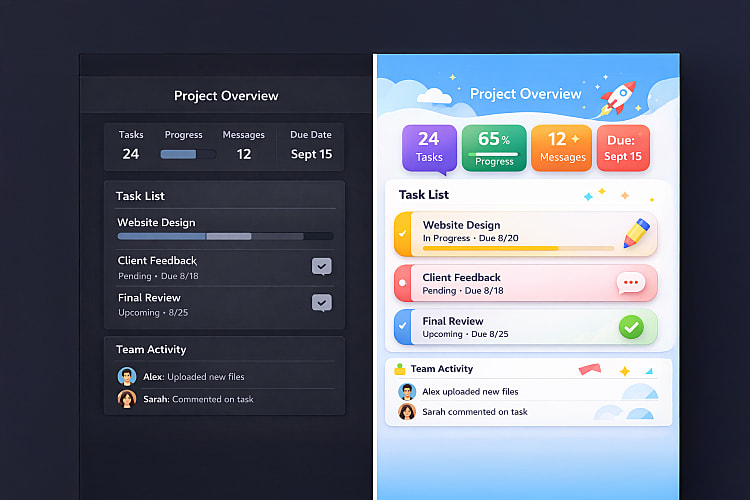
What if your UI could automatically adapt its look and feel based on the content it displays? Imagine a movie recommendation site that understands your viewing habits. If you enjoy slow, tense films at night, it uses dark colours, calm animations, and layouts that emphasise mood and detailed descriptions. If you prefer browsing quickly across genres during the day, it shifts to vibrant colours, compact cards, and faster interactions - all without hard-coded UI rules.
With today's LLMs, we can build interfaces that understand context and adapt accordingly. Google recently showcased this capability with their A2UI (Agent-to-UI) open-source project, and I'm excited to show you how it works.
In this article, we'll build a content-driven blog application. Each article renders with a unique layout and styling determined entirely by Gemini 2.5 Flash. Unlike traditional approaches where UI is hardcoded, A2UI lets an AI agent analyse content and dynamically decide how to render it.
What is A2UI?
A2UI stands for Agent-to-UI - an open-source protocol released by Google under the Apache 2 license. It defines a standard way for AI agents to describe user interfaces without executing code directly in your application.
A2UI uses a declarative approach: agents send JSON descriptions of UI components, and your application maps these to trusted components from your design system. The protocol supports streaming, enabling progressive rendering so users see results appear in real time as the AI generates them. A2UI is completely framework-agnostic, providing a standard interface that works seamlessly with Lit, Angular, React, Flutter, or any other framework.
What's Happening Under the Hood
- You send a message through the web UI
- The A2A agent receives it and forwards the conversation to Gemini
- Gemini generates A2UI JSON messages that describe the UI
- The A2A agent streams these messages back to the web app
- The A2UI renderer converts them into native web components
- You see the UI rendered in your browser
Where Content-Adaptive Interfaces Make the Most Sense
At this point, you're probably asking a reasonable question: Why would we ever let an LLM decide what to render? Isn't this overkill when we've been building UIs with hard-coded conditionals for decades - faster, simpler, and perfectly adequate in most cases? And honestly, you wouldn't be wrong.
Not every interface should be replaced with a content-adaptive one. Most UIs don't need this at all. Traditional, deterministic UI logic is still the right choice for most applications.
But that's not the problem A2UI is trying to solve.
A2UI shines when content is unpredictable, high-variance, or semantically rich - where predefining every possible UI state becomes brittle, complex, or unrealistic. Instead of asking "Which UI should I render?" ahead of time, you let the agent decide "What is the most helpful interface for this content, right now?"
Here are two scenarios where that trade-off makes sense.
1. Conversational Assistants
Most chatbots still default to plain text responses, even when a structured interface would be far more helpful.
Imagine a conversational assistant that helps you book a restaurant. Instead of responding with instructions like "Go to this website and fill out this form," the agent can dynamically render the appropriate UI component:
- Ask for nearby restaurants → render a card-based list with images, ratings, and availability
- Ask to book a table for two → render a booking form with date and time selectors
- Ask to change the time → update only the relevant UI fields
With A2UI, the chatbot doesn't just respond - it assembles the interface that best matches the user's intent.
2. Highly Personalised Experiences
Personalisation is one of the strongest arguments for content-adaptive interfaces.
As an application learns from user behaviour - what they click, how they navigate, what they ignore - an agent can adjust not just what content appears, but how it's presented. Instead of building and maintaining multiple UI variants, the agent decides layout, emphasis, and component choice on the fly.
What We're Building
To demonstrate A2UI's power, we'll create a blog application.
Each article is written in Markdown. When you view it, Gemini analyses the content and decides:
- Which components to use (hero sections, code blocks, image galleries, quotes, etc.)
- How to style them (colours, spacing, shadows based on the article's topic)
Here's how it works: When a user opens an article, the client sends the article data to the A2UI agent. Gemini analyses the content - understanding its structure, intent, and visual tone - then determines which UI components and styles fit best. The agent returns this as A2UI JSON, which the Lit renderer translates into native web components. The result is a polished, content-appropriate interface rendered instantly in the browser.
The same rendering system produces completely different layouts for a technology article, a cooking guide, or a photography guide.
Before continuing, feel free to clone the repo, run it locally, and skip ahead - or keep reading for a full walkthrough.
Prerequisites
- Node.js (v24 or later)
- A Gemini API key—Get one free from Google AI Studio
Make sure to add the Gemini API key in the
.envfile before starting the app.
git clone https://github.com/Suv4o/a2ui-content-demo.git
cp .env.example .env
npm install
npm run dev
The website will run on http://localhost:5173
Project Setup
For simplicity - and to avoid an overly long blog post - some examples and setup steps are abbreviated here. For full integration details, refer to the original GitHub repo. focus on explaining the core concepts without excessive detail, keeping things digestible.
High-Level Overview of the Project Structure
a2ui-content-demo/
├── ...
├── .env                          # API key
├── index.html                    # Entry point
├── public/
│   └── articles/                 # Markdown content
│       ├── space-exploration.md
│       ├── web-components.md
│       └── italian-cooking.md
├── server/
│   ├── index.ts                  # A2UI Agent (Node.js + Gemini)
│   ├── tsconfig.json
│   └── a2ui-schema.json          # Component definitions
└── src/
    ├── app.ts                    # Main application
    ├── types.ts                  # Type definitions
    ├── components/               # Lit web components
    │   ├── a2ui-renderer.ts      # Main renderer
    │   ├── a2ui-hero.ts
    │   ├── a2ui-text-block.ts
    │   ├── a2ui-code-block.ts
    │   └── ...
    └── services/
        ├── a2ui-client.ts        # Client for A2UI agent
        └── content-parser.ts     # Markdown parser
Define the Component Schema
The schema (server/a2ui-schema.json) defines which UI components the agent can generate- think of it as the "vocabulary" the agent uses to describe UIs.
Layout components for structure:
Column/Row- vertical/horizontal arrangement with gap and alignmentCard- container with optional title, content, and imageDivider- visual separator
Content components for information:
TextBlock- markdown/text with variants (body, lead, small)ImageGallery- grid of images (1–4 columns, with lightbox)CodeBlock- syntax-highlighted code with language and line numbersQuote- block-quote with author attributionTable- data tables with headers and rows
Specialized components for context:
HeroSection- full-width header with image overlayCallout- highlighted info boxes (info/warning/success/tip)Metadata- article metadata (author, date, tags, read time)List- ordered or unordered lists
Each component definition specifies what's required (TextBlock needs content, ImageGallery needs images) and what values are valid (Callout.type can only be "info", "warning", "success", or "tip"). This prevents the agent from generating invalid UI like columns: 99 or type: "danger".
{
    "definitions": {
        "HeroSection": {
            "required": ["title"],
            "properties": {
                "title": { "type": "string" },
                "subtitle": { "type": "string" },
                "imageUrl": { "type": "string" },
                "height": { "enum": ["small", "medium", "large", "full"] }
            }
        },
        "ImageGallery": {
            "required": ["images"],
            "properties": {
                "images": {
                    "type": "array",
                    "items": { "properties": { "url": {}, "caption": {}, "alt": {} } }
                },
                "columns": { "type": "integer", "minimum": 1, "maximum": 4 },
                "lightbox": { "type": "boolean", "default": true }
            }
        },
        "Callout": {
            "required": ["content"],
            "properties": {
                "content": { "type": "string" },
                "type": { "enum": ["info", "warning", "success", "tip"] },
                "title": { "type": "string" }
            }
        }
    }
}
The agent doesn't implement these components - it describes which ones to use and with what properties. Your client handles the actual rendering.
Build the A2UI Agent (Backend)
The agent is a simple Express server in server/index.ts. It receives article content and sends it to Gemini with a system prompt that generates A2UI component JSON.
Setting Up the Server
First, set up Express and initialise the Gemini client:
import express, { Request, Response } from "express";
import cors from "cors";
import { GoogleGenerativeAI } from "@google/generative-ai";
import { readFileSync } from "fs";
import { dirname, join } from "path";

// Load A2UI schema
const A2UI_SCHEMA = JSON.parse(readFileSync(join(__dirname, "a2ui-schema.json"), "utf-8"));

// Initialize Gemini
const genAI = new GoogleGenerativeAI(process.env.GEMINI_API_KEY || "");
const model = genAI.getGenerativeModel({
    model: "gemini-2.5-flash",
    generationConfig: {
        responseMimeType: "application/json",
    },
});

const app = express();
app.use(cors());
app.use(express.json());
The key configuration is responseMimeType: "application/json", which ensures Gemini returns valid JSON that can be parsed directly.
The System Prompt
The system prompt is where the magic happens. It teaches Gemini:
- What components exist (the catalog)
- When to use each one (content patterns)
- How to style them (topic-based colours)
Here's a condensed version showing the key sections (for the full version, visit the repo linked to this article):
const SYSTEM_PROMPT = `You are an A2UI agent. Analyze article content
and generate a UI layout using A2UI components WITH CUSTOM STYLING.

## Available Components:

1. **HeroSection** - Full-width hero with image, title, subtitle
   - Use for: Articles with prominent images, feature articles
   - Properties: title, subtitle, imageUrl, height, style

2. **TextBlock** - Rich text content (supports markdown)
   - Use for: Body paragraphs, introductions
   - Properties: content, variant (body|lead|small), style

3. **ImageGallery** - Grid of images with lightbox
   - Use for: Photography articles, visual guides
   - Properties: images [{url, caption}], columns (1-4), style

4. **CodeBlock** - Syntax-highlighted code
   - Use for: Technical articles, tutorials
   - Properties: code, language, title, style

5. **Callout** - Highlighted information box
   - Use for: Tips, warnings, important notes
   - Properties: content, type (info|warning|success|tip), style

...more components

## Content-Based Styling Guidelines:

Choose styling based on the article's TOPIC:

### Technology/Code Content
- Use cool colors: deep blues (#1e3a5f), teals (#0d9488)
- Dark backgrounds with light text for code sections
- Example: "backgroundColor": "#0f172a", "textColor": "#e2e8f0"

### Nature/Outdoor Content
- Use earthy colors: greens (#2d5016), browns, sky blues
- Soft shadows, medium border radius
- Example: "gradient": { "from": "#2d5016", "to": "#6b8e23" }

### Food/Cooking Content
- Use warm colors: oranges (#ea580c), reds, yellows
- Inviting feel with soft shadows
- Example: "backgroundColor": "#fef3c7", "textColor": "#92400e"

...more styling guidelines

## Response Format:

Return JSON with this structure:
{
  "surfaceUpdate": {
    "surfaceId": "article-view",
    "components": [
      {
        "id": "unique-id",
        "component": {
          "ComponentName": { ...properties, "style": {...} }
        }
      }
    ]
  }
}
`;
The Generation Function
This function sends the article content and metadata to Gemini:
async function generateA2UIComponents(articleContent: string, articleMeta: ArticleMeta): Promise<A2UISurfaceUpdate> {
    const prompt = `
## Article Metadata:
${JSON.stringify(articleMeta, null, 2)}

## Article Content (Markdown):
${articleContent}

## Task:
Analyze this article and generate an A2UI component layout.
Consider the content type, structure, and any special elements.

Generate the A2UI JSON response:
`;

    const result = await model.generateContent([{ text: SYSTEM_PROMPT }, { text: prompt }]);

    const response = result.response.text();
    return JSON.parse(response);
}
Pass both the system prompt (the rules) and the user prompt (the actual article) to Gemini. The model analyses the content - detecting code blocks, images, and quotes - and returns structured A2UI JSON.
The API Endpoint
Finally, here's the endpoint that clients call:
app.post("/api/a2ui/render", async (req: Request, res: Response) => {
    const { content, meta } = req.body;

    if (!content) {
        res.status(400).json({ error: "Content is required" });
        return;
    }

    try {
        console.log(`[A2UI Agent] Processing: ${meta?.title || "Untitled"}`);
        const a2uiResponse = await generateA2UIComponents(content, meta || {});
        res.json(a2uiResponse);
    } catch (error) {
        res.status(500).json({ error: "Failed to generate UI components" });
    }
});

const PORT = process.env.PORT || 3001;
app.listen(PORT, () => {
    console.log(`[A2UI Agent] Server running on http://localhost:${PORT}`);
});
The client sends { content: "markdown...", meta: { title, author, heroImage, ... } } and receives the full A2UI surface update with styled components.
Create the A2UI Client Service
The client service (src/services/a2ui-client.ts) is a thin wrapper that sends article content to our agent and receives the A2UI component descriptions.
import type { A2UISurfaceUpdate, ArticleMeta } from "../types.js";

const API_BASE = "http://localhost:3001/api/a2ui";

export class A2UIClient {
    /**
     * Send content to the A2UI agent and get back component descriptions
     */
    async render(content: string, meta: ArticleMeta): Promise<A2UISurfaceUpdate> {
        try {
            const response = await fetch(`${API_BASE}/render`, {
                method: "POST",
                headers: { "Content-Type": "application/json" },
                body: JSON.stringify({ content, meta }),
            });

            if (!response.ok) {
                throw new Error("Failed to get A2UI response");
            }

            return await response.json();
        } catch (error) {
            console.error("A2UI Client Error:", error);
            // Return a fallback UI if the agent fails
            return this.getFallbackUI(content, meta);
        }
    }

    /**
     * Fallback UI when the agent is unavailable
     */
    private getFallbackUI(content: string, meta: ArticleMeta): A2UISurfaceUpdate {
        return {
            surfaceUpdate: {
                surfaceId: "article-view",
                components: [
                    {
                        id: "title-1",
                        component: {
                            HeroSection: { title: meta.title, imageUrl: meta.heroImage },
                        },
                    },
                    {
                        id: "content-1",
                        component: {
                            TextBlock: { content: content, variant: "body" },
                        },
                    },
                ],
            },
        };
    }
}

export const a2uiClient = new A2UIClient();
The client handles three tasks:
- Sends content to the agent - POSTs the markdown content and metadata to
/api/a2ui/render - Returns the A2UI response - Receives component descriptions ready for rendering
- Provides a fallback - Renders a basic layout if the agent is unavailable
Usage is simple:
const a2uiResponse = await a2uiClient.render(article.content, article.meta);
// a2uiResponse.surfaceUpdate.components contains the UI description
Build the A2UI Renderer (Lit Web Components)
The renderer (src/components/a2ui-renderer.ts) bridges A2UI JSON and actual UI. It receives component descriptions from the agent and maps each to a Lit web component.
The Core Renderer
import { LitElement, html, css, TemplateResult } from "lit";
import { customElement, property } from "lit/decorators.js";
import type { A2UIComponent, A2UIComponentType } from "../types.js";

// Import all A2UI component renderers
import "./a2ui-hero.js";
import "./a2ui-text-block.js";
import "./a2ui-image-gallery.js";
import "./a2ui-code-block.js";
import "./a2ui-callout.js";
import "./a2ui-quote.js";
// ...more components

@customElement("a2ui-renderer")
export class A2UIRenderer extends LitElement {
    @property({ type: Array })
    components: A2UIComponent[] = [];

    // Store components by ID for layout references
    private componentMap = new Map<string, A2UIComponent>();

    render() {
        // Build component map for Row/Column children lookups
        this.componentMap.clear();
        this.components.forEach((c) => this.componentMap.set(c.id, c));

        return html` <div class="a2ui-surface">${this.components.map((c) => this.renderComponent(c))}</div> `;
    }
}
The renderer maintains a componentMap that stores components by ID. This is essential for layout components like Row and Column, which reference child components by ID.
Mapping Components
The renderComponent method uses a simple switch statement to map each A2UI component type to its Lit component:
private renderComponent(component: A2UIComponent): TemplateResult {
  const { component: comp } = component;

  // Get the component type (first key in the object)
  const type = Object.keys(comp)[0] as keyof A2UIComponentType;
  const props = comp[type];

  switch (type) {
    case "HeroSection":
      return html`<a2ui-hero .props=${props}></a2ui-hero>`;

    case "TextBlock":
      return html`<a2ui-text-block .props=${props}></a2ui-text-block>`;

    case "ImageGallery":
      return html`<a2ui-image-gallery .props=${props}></a2ui-image-gallery>`;

    case "CodeBlock":
      return html`<a2ui-code-block .props=${props}></a2ui-code-block>`;

    case "Callout":
      return html`<a2ui-callout .props=${props}></a2ui-callout>`;

    case "Row":
      return this.renderRow(props);

    case "Column":
      return this.renderColumn(props);

    default:
      return html`<div class="error">Unknown component: ${type}</div>`;
  }
}
Each case passes the props from the A2UI JSON to the corresponding Lit component, which handles its own rendering and styling.
Layout Components
Row and Column are special - they reference other components by ID:
private renderRow(props: { children: string[]; gap?: string }): TemplateResult {
  // Look up child components by their IDs
  const children = props.children
    .map((id) => this.componentMap.get(id))
    .filter((c): c is A2UIComponent => c !== undefined);

  return html`
    <div class="a2ui-row" style="gap: ${this.getGapSize(props.gap)}">
      ${children.map((c) => this.renderComponent(c))}
    </div>
  `;
}

private renderColumn(props: { children: string[]; gap?: string }): TemplateResult {
  const children = props.children
    .map((id) => this.componentMap.get(id))
    .filter((c): c is A2UIComponent => c !== undefined);

  return html`
    <div class="a2ui-column" style="gap: ${this.getGapSize(props.gap)}">
      ${children.map((c) => this.renderComponent(c))}
    </div>
  `;
}
This adjacency-list pattern (referencing children by ID rather than nesting) is key to the A2UI protocol. It keeps the JSON structure flat and easier for LLMs to generate.
Usage
Using the renderer in the article view is straightforward:
import "./a2ui-renderer.js";

// After getting A2UI response from the agent
const components = a2uiResponse.surfaceUpdate.components;

// Render in template
html`<a2ui-renderer .components=${components}></a2ui-renderer>`;
The renderer handles the rest - mapping types, resolving children, and rendering the final UI.
Create Individual A2UI Components
Each A2UI component is a Lit web component that receives props from the renderer and handles its own styling. Here's the Hero component (src/components/a2ui-hero.ts):
import { LitElement, html, css } from "lit";
import { customElement, property } from "lit/decorators.js";
import { styleMap } from "lit/directives/style-map.js";
import type { HeroSectionProps } from "../types.js";
import { stylePropsToObject } from "../utils/style-utils.js";

@customElement("a2ui-hero")
export class A2UIHero extends LitElement {
    static styles = css`...`; // Component-specific CSS

    @property({ type: Object })
    props: HeroSectionProps = { title: "" };

    render() {
        const { title, subtitle, imageUrl, overlay = true, height = "medium", style } = this.props;

        // Convert A2UI style props to CSS
        const customStyles = stylePropsToObject(style);

        return html`
            <div class="hero ${height}" style=${styleMap(customStyles)}>
                ${imageUrl ? html`<img class="hero-image" src="${imageUrl}" alt="${title}" />` : null}
                ${imageUrl && overlay ? html`<div class="hero-overlay"></div>` : null}
                <div class="hero-content">
                    <h1 class="hero-title">${title}</h1>
                    ${subtitle ? html`<p class="hero-subtitle">${subtitle}</p>` : null}
                </div>
            </div>
        `;
    }
}
The pattern is consistent across all components:
- Receive props - The
propsproperty contains everything the agent specified - Extract values - Destructure with sensible defaults (
height = "medium") - Apply custom styles - Use
stylePropsToObject()to convert A2UI style hints to CSS - Render conditionally - Show elements only when data exists
The stylePropsToObject utility converts A2UI's semantic style properties (like borderRadius: "large" or shadow: "medium") into actual CSS values. This keeps the agent's output simple while giving the client full control over visual implementation.
Create Sample Articles
Articles live as Markdown files in public/articles/. Each file has YAML frontmatter for metadata and standard Markdown for content.
Here's a condensed example (public/articles/mountain-photography.md):
---
title: "Mountain Photography Guide"
author: "Emma Nakamura"
date: "2024-12-15"
heroImage: "https://images.unsplash.com/photo-1506905925346-21bda4d32df4?w=1200"
tags: ["photography", "nature", "travel"]
images:
- url: "https://images.unsplash.com/photo-1464822759023-fed622ff2c3b?w=800"
caption: "Dramatic peaks at golden hour"
- url: "https://images.unsplash.com/photo-1519681393784-d120267933ba?w=800"
caption: "Starry night over snow-capped mountains"
- url: "https://images.unsplash.com/photo-1486870591958-9b9d0d1dda99?w=800"
caption: "Misty morning in the Alps"
---
# Mountain Photography Guide
Capturing the majesty of mountains requires patience, preparation,
and an understanding of light.
## Essential Gear
- **Wide-angle lens** (16-35mm) for sweeping landscapes
- **Telephoto lens** (70-200mm) for distant peaks
- **Sturdy tripod** for long exposures
- **ND filters** for controlling light
## Best Times to Shoot
> "The best light happens when most people are still sleeping."
Golden hour (sunrise/sunset) provides warm, dramatic lighting...
## Photo Gallery


The frontmatter provides the agent with metadata:
heroImage→ triggers aHeroSectioncomponenttags→ helps determine topic-based styling (nature → greens)imagesarray → signals that anImageGallerymight be appropriate
The content structure also influences component choices:
- Lists →
Listcomponent - Blockquotes →
Quotecomponent - Multiple images →
ImageGallerycomponent - Code blocks →
CodeBlockcomponent
The agent analyses both metadata and content to determine the best layout and styling.
Wire Everything Together
Update package.json scripts to run both the agent server and Vite client concurrently:
{
  "scripts": {
    "dev": "concurrently \"npm run server\" \"npm run client\"",
    "server": "tsx watch server/index.ts",
    "client": "vite"
  }
}
Create a .env file in the project root with your Gemini API key:
GEMINI_API_KEY=your_api_key_here
You can get a free API key from Google AI Studio.
Running the Demo
npm run dev
This starts:
- Agent server at
http://localhost:3001 - Vite client at
http://localhost:5173
Open http://localhost:5173 and click different articles. Watch how:
- Mountain Photography renders with earthy greens and an image gallery
- Space Exploration renders with cosmic purples and deep blues
- Italian Cooking renders with warm oranges and appetising styling
- Web Components renders with technical blues and code-focused layout
- Building AI Chatbot renders with modern teals and code blocks
The same renderer, the same components - but completely different UIs based on content. The agent analyses each article's topic and structure, then chooses both the layout and the colour palette to match.
Conclusion
A2UI represents a paradigm shift in how we think about AI-powered interfaces. AI agents can now describe rich, styled UIs that your application renders safely.
The key insight from this demo: content can drive design decisions. By giving the LLM both component options and styling parameters, we create interfaces that feel intentionally designed - even though they're generated on the fly.
The future of UI isn't just about what we display, but how we display it based on context. A2UI gives you the tools to build it today.
You can find the complete project code in the GitHub repository.
Further Reading
Explore more articles that might interest you.