

Automating My Blog Workflow with GitHub Copilot SDK
8th February 2026 • 9 min read — by Aleksandar Trpkovski
Play audio summary
When GitHub announced the Copilot SDK in technical preview a few weeks back in January, my mind immediately started racing with possibilities. I've been writing blog articles for half a decade now, and while I love the creative process of putting thoughts into words, there's always been a part of the workflow that felt... tedious.
I write all my blog posts in Markdown. It's clean, it's developer-friendly, and it works beautifully with note-taking apps like Notion. But turning a raw Markdown draft into a properly formatted blog article? That's where things used to get repetitive.
The Manual Work I Was Doing
Every time I finished writing an article, I had to go through a checklist of tasks:
- Convert the draft file into the correct folder structure (
content/YYYY/MM/DD/article-slug.md) - Add frontmatter with SEO metadata (title, description, keywords)
- Calculate and add the reading time
- Format the publication date in a human-readable way ("2nd February 2026")
- Add article tags (my blog uses exactly 3 tags per article)
- Apply the correct Cloudinary image modifiers for cover images and inline images
- Make sure external links open in new tabs with proper security attributes
- Add the required components in the right places
It took time. And when you're excited to publish something you've just written, spending more time on formatting feels like a hassle.
Enter GitHub Copilot
When agents were first introduced in Copilot last year, I started using GitHub Copilot in VS Code to help with this process. I'd open the Copilot chat, write a detailed prompt explaining exactly what I needed, and let it do the heavy lifting. It worked well - Copilot understood my blog's structure after I showed it a few examples, and it could generate the formatted article reliably.
But here's the thing: I was still writing the same prompt over and over. Copy the draft content, paste it into Copilot, include references to existing articles for context, specify the tags, the date format, the image URLs... It was faster than doing everything manually, but I kept thinking: "Surely I can automate this too?"
That's when the Copilot SDK caught my attention.
What is the GitHub Copilot SDK?
The GitHub Copilot SDK gives developers programmatic access to the same agentic engine that powers the GitHub Copilot CLI. Instead of interacting with Copilot through a chat interface, you can write code that talks to it directly.
The SDK is available in four languages:
- Node.js/TypeScript
- Python
- Go
- .NET
They all provide a consistent API with features like:
- Multi-turn conversations - Sessions maintain context across interactions
- File attachments - Attach files for the model to analyse
- Tool execution - Define custom tools the model can invoke
- Model selection - Choose which model to use for your task
This is still in technical preview. The documentation might change, features could evolve, and it's not yet recommended for production use. But for personal projects and experimentation? It's already quite capable.
How the SDK Works
Here's something that confused me at first: the Copilot SDK doesn't make API calls directly to a cloud endpoint. Instead, it communicates with the Copilot CLI running locally on your machine through JSON-RPC.
Think of it like this:
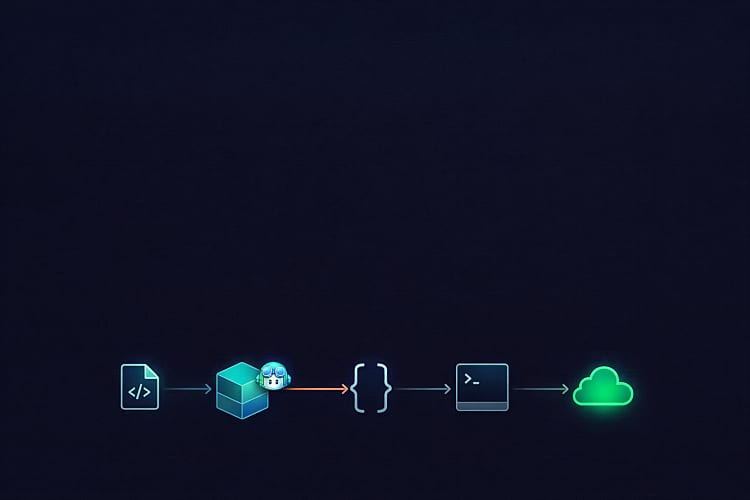
Your Script → Copilot SDK → JSON-RPC → Copilot CLI → Copilot API
This means you need to have the Copilot CLI installed and authenticated before you can use the SDK. On macOS, the setup looks like this:
brew install copilot-cli
brew install gh
gh auth login
The gh auth login command opens your browser and prompts you to authenticate with GitHub. Once authenticated, the Copilot CLI can use those credentials. The SDK then manages the CLI process lifecycle automatically by starting it when you create a client and stopping it when you're done.
Building the Automation Script
Now let's build the script. I'll focus on the essential parts and explain how they connect together.
Project Setup
First, I created a scripts folder in my blog project with its own package.json:
{
    "name": "scripts",
    "version": "1.0.0",
    "type": "module",
    "scripts": {
        "convert": "tsx ./convert-article.ts"
    },
    "devDependencies": {
        "tsx": "^4.21.0"
    },
    "dependencies": {
        "@github/copilot-sdk": "^0.1.19"
    }
}
The "type": "module" enables ES modules, tsx lets us run TypeScript directly, and @github/copilot-sdk is the official Node.js SDK.
The Script's Workflow
Before diving into code, here's what the script does at a high level:
- Find the draft article - Look for any
.mdfile in the project root (excludingREADME.md) - Gather context - Find recent blog articles to use as formatting examples
- Locate the tags component - My blog has a Vue component defining all available tags
- Build file attachments - Prepare the files to send to Copilot
- Build the prompt - Create detailed instructions for the conversion
- Send to Copilot - Use the SDK to send everything and wait for a response
- Parse and save - Extract the result and write the formatted article
- Clean up - Delete the original draft
I've written helper functions for steps 1-3 that handle the file system operations - finding the draft, walking the content directory for examples, and locating the tags component. These are straightforward Node.js file operations, so I won't show all the code here. The interesting part is how we interact with the Copilot SDK.
Building File Attachments
One of the most powerful features of the SDK is file attachments. Instead of copying content into your prompt, you can reference files directly:
const attachments = [
    { type: "file" as const, path: draftPath, displayName: "draft-article.md" },
    { type: "file" as const, path: tagPillsPath, displayName: "TagPills.vue" },
    ...exampleArticles.map((articlePath, index) => ({
        type: "file" as const,
        path: articlePath,
        displayName: `example-article-${index + 1}.md`,
    })),
];
Each attachment has a type (always "file" for files), a path to the file on disk, and a displayName that helps the model understand what it's looking at. In my case, I'm attaching:
- The draft article to convert
- My
TagPills.vuecomponent (so the model can extract available tags) - Two recent blog articles as formatting examples
The model can then read and analyse these files to understand exactly what I need.
Crafting the Prompt
The prompt is where you tell the model what to do. Here's a condensed version of mine:
function buildConversionPrompt(today: Date): string {
    const dateStr = formatPublishedDate(today); // e.g., "2nd February 2026"
    const year = today.getFullYear();
    const month = String(today.getMonth() + 1).padStart(2, "0");
    const day = String(today.getDate()).padStart(2, "0");

    return `You are a professional blog article converter. Your task is to convert a draft Markdown article into a fully structured blog article that matches the format and conventions of the example articles provided.

## ATTACHED FILES
I have attached the following files for context:
1. **Draft Article** - The markdown file to convert
2. **Example Articles** - Reference articles showing the expected format
3. **TagPills.vue** - Vue component containing all available article tags

## TODAY'S DATE INFORMATION
- Published date format: "${dateStr}"
- Target folder structure: content/${year}/${month}/${day}/

## CONVERSION RULES
[... detailed rules for frontmatter, images, links, components ...]

## REQUIRED OUTPUT FORMAT
You MUST respond with a JSON object containing exactly these two fields:
1. "slug": The generated slug for the filename (without .md extension)
2. "content": The complete converted Markdown article content

Example response format:
{
  "slug": "my-article-slug",
  "content": "---\\ntitle: My Article\\n...rest of the article..."
}

IMPORTANT: Output ONLY the JSON object, no additional text or explanation.`;
}
I've omitted the full conversion rules for brevity, but they include specifics about:
- How to generate URL-friendly slugs from titles
- The exact frontmatter fields required (title, description, keywords, tags, etc.)
- Cloudinary image modifier patterns for different image sizes
- How external links should be formatted
- Which components to include and which to avoid
The key insight is that the more specific your prompt, the more consistent your results. By requesting JSON output with a specific structure, parsing the response becomes straightforward.
Initialising and Using the SDK
Here's the core of the script - the actual interaction with Copilot:
import { CopilotClient } from "@github/copilot-sdk";

async function main() {
    // ... file discovery and preparation code ...

    const client = new CopilotClient();

    try {
        // Start the client (this launches the Copilot CLI)
        await client.start();
        console.log("Copilot client started successfully.");

        // Create a session with your preferred model
        const session = await client.createSession({
            model: "claude-opus-4.5",
        });
        console.log("Session created with model: claude-opus-4.5");

        // Send the prompt with file attachments
        const result = await session.sendAndWait(
            {
                prompt,
                attachments,
            },
            300000, // 5 minutes timeout
        );

        // Extract the response text
        if (!result || !result.data || !result.data.content) {
            throw new Error("No response received from Copilot");
        }

        const responseText = result.data.content;

        // Parse the JSON response
        const parsed = parseResponse(responseText);
        const { slug, content } = parsed;

        // Write the converted article to the correct location
        const targetFile = path.join(contentDir, year, month, day, `${slug}.md`);
        fs.writeFileSync(targetFile, content, "utf-8");
        console.log(`Article created: ${targetFile}`);

        // Clean up
        await session.destroy();
        await client.stop();
        process.exit(0);
    } catch (error) {
        console.error("Error during conversion:", error);
        await client.stop();
        process.exit(1);
    }
}
Let me break down the key SDK operations:
Starting the Client:
const client = new CopilotClient();
await client.start();
This creates a client instance and starts the Copilot CLI in server mode. The SDK handles all the process management for you.
Creating a Session:
const session = await client.createSession({
    model: "claude-opus-4.5",
});
A session represents a conversation. You can choose which model to use - I picked claude-opus-4.5, but gpt-5 and other models are also available.
Sending with Attachments:
const result = await session.sendAndWait({ prompt, attachments }, 300000);
The sendAndWait method sends your prompt along with any file attachments and waits for the complete response. The second argument is a timeout in milliseconds - I use 5 minutes since processing multiple files can take a while.
Extracting the Response:
const responseText = result.data.content;
The response is an event object where the actual text lives in result.data.content.
Cleanup:
await session.destroy();
await client.stop();
process.exit(0);
Always clean up by destroying the session and stopping the client. The process.exit(0) ensures the script terminates - without it, open handles might keep the process running.
Parsing the Response
Since I asked for JSON output, I need a function to parse it:
function parseResponse(response: string): { slug: string; content: string } | null {
    try {
        // Try to extract JSON from the response (in case of extra text)
        const jsonMatch = response.match(/\{[\s\S]*"slug"[\s\S]*"content"[\s\S]*\}/);
        if (jsonMatch) {
            const parsed = JSON.parse(jsonMatch[0]);
            if (parsed.slug && parsed.content) {
                return { slug: parsed.slug, content: parsed.content };
            }
        }

        // Fallback: try parsing the entire response
        const parsed = JSON.parse(response);
        if (parsed.slug && parsed.content) {
            return { slug: parsed.slug, content: parsed.content };
        }
    } catch (e) {
        console.error("Failed to parse JSON response:", e);
    }
    return null;
}
This is intentionally defensive - it first tries to extract JSON using a regex (in case the model added extra text despite instructions), then falls back to parsing the whole response. LLMs don't always follow instructions perfectly, so a bit of flexibility helps.
Running the Script
With everything in place, converting an article is now a single command:
cd scripts
npm run convert
The output walks through each step:
Starting Article Conversion with Copilot SDK
Root directory: /path/to/my-blog
Content directory: /path/to/my-blog/content

Step 1: Finding draft article in root...
Found draft article: /path/to/my-blog/My New Article.md

Step 2: Finding example articles for context...
Found 2 example articles:
  - content/2026/01/18/understanding-modern-rpc-frameworks.md
  - content/2026/01/04/blogging-in-2026.md

Step 3: Locating TagPills component...
Found TagPills component: /path/to/my-blog/app/components/TagPills.vue

Step 4: Preparing file attachments...
Prepared 4 file attachments

Step 5: Building conversion prompt...

Step 6: Initializing Copilot SDK...
Copilot client started successfully.
Session created with model: claude-opus-4.5

Step 7: Sending prompt to Copilot with file attachments...

Step 8: Parsing Copilot response...
Generated slug: my-new-article

Step 9: Creating article file...
Article created: /path/to/my-blog/content/2026/02/02/my-new-article.md

Step 10: Cleaning up...
Deleted original draft: /path/to/my-blog/My New Article.md

Conversion completed successfully!
New article: content/2026/02/02/my-new-article.md
What used to take several minutes of manual prompting and copying now happens in under a minute. I drop my draft Markdown file in the project root, include the Cloudinary image URLs at the bottom, run the script, and it's done.
A Note on CI/CD
I did experiment with running this script in a GitHub Actions workflow. The idea was appealing - push a draft to a branch, have it automatically converted, then trigger deployment pipelines.
However, since the SDK is in technical preview, getting authentication working in CI proved challenging. The Copilot CLI typically requires interactive authentication, which doesn't play nicely with automated environments. It might become easier as the SDK matures, but for now, running the script locally before pushing works perfectly fine.
Looking Ahead
This is a fairly simple use case, but it demonstrates the potential of programmatic access to Copilot. Instead of just helping you write code, it can now be part of your toolchain - processing files, transforming content, and automating workflows that previously required manual intervention.
I'm already thinking about what else I could automate. What if the script could read articles directly from Notion, where I do my initial drafting? What if it could generate social media snippets automatically? The possibilities are genuinely exciting.
The Copilot SDK is still early days, but for those of us who like to experiment with new tools, it's already proving useful. If you have repetitive tasks that involve processing text or files with some intelligence required, it might be worth giving it a try.
You can find the official SDK repository and documentation at github.com/github/copilot-sdk. And if you want to see the complete conversion script I built, check out the scripts/convert-article.ts file in my blog's repository.
Happy automating! 🚀
Further Reading
Explore more articles that might interest you.

