
Make Your Audio Play with Real-Time Transcript Highlighting
16th November 2025 • 3 min read — by Aleksandar Trpkovski
Play audio summary
This blog article is a continuation of my previous post where I showed you how to convert markdown into podcasts using OpenAI agents. If you haven't read that one yet, you can check it out here.
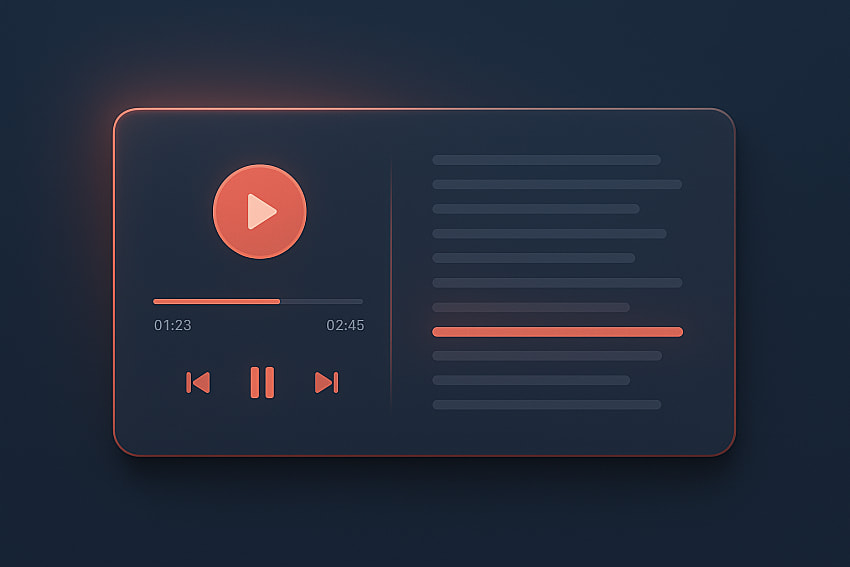
In this article, I'm going to show you how to take that generated MP3 podcast-style audio from markdown and create an interactive audio player with live captions. Think of it like YouTube's live captions feature, where the text highlights in sync with what's being said. We'll build this using just HTML, CSS, and JavaScript.
What We're Building
Here's what our audio player will do:
- Play your MP3 audio file (the one we generated from markdown in my previous article)
- Display the full transcript below the player
- Highlight each line of text as it's being spoken
- Automatically scroll to keep the active text in view
- Let listeners click any line to jump to that part of the audio
What You'll Need
Before we dive in, make sure you have:
- An audio file (MP3, WAV, or any browser-supported format)
- A transcript with timestamps in JSON format (don't worry if you don't have this yet - I'll show you how to get it in the next section)
Understanding the Transcript Format
The key to making everything work smoothly is having a transcript with precise timestamps. Here's what the JSON format looks like:
[
    {
        "start": 0,
        "end": 3.28,
        "text": "Welcome back to the podcast where tech meets creativity."
    },
    {
        "start": 3.28,
        "end": 5.04,
        "text": "Today, we're diving into how to transform"
    },
    {
        "start": 5.04,
        "end": 7.72,
        "text": "your markdown blogs into engaging podcasts"
    }
]
Each segment includes:
start: When this text begins (in seconds)end: When this text ends (in seconds)text: The actual words spoken
If you don't have timestamps yet, you can use OpenAI's Whisper API to generate them automatically from your audio file. I've created a simple project to help you do exactly that-you can find it at this link.
Creating the HTML Structure
Let's start by building a simple HTML file. Create an index.html file:
<!DOCTYPE html>
<html lang="en">
    <head>
        <meta charset="UTF-8" />
        <meta name="viewport" content="width=device-width, initial-scale=1.0" />
        <title>Audio Synced Transcription</title>
        <link rel="stylesheet" href="styles.css" />
    </head>
    <body>
        <div class="container">
            <h1>Podcast: Tech Meets Creativity</h1>

            <audio id="podcast" controls src="podcast_episode.mp3"></audio>

            <div class="transcript-wrapper">
                <h2>Transcript</h2>
                <div id="transcript" class="transcript"></div>
            </div>
        </div>

        <script src="script.js"></script>
    </body>
</html>
That's all you need! Notice we have:
- An
<audio>element withcontrolsso users can play and pause - An empty
<div id="transcript">where we'll dynamically insert our transcript - Links to our CSS and JavaScript files
Loading and Displaying the Transcript
Now let's create a script.js file. This is where the magic happens!
// Load transcript data from JSON file
fetch('podcast_episode_transcript.json')
  .then(response => response.json())
  .then(transcriptData => {
    const transcriptEl = document.getElementById("transcript");
    const audioEl = document.getElementById("podcast");

    // Render the transcript with each segment on a new line
    transcriptEl.innerHTML = transcriptData
      .map((seg, i) => `<p class="segment" data-index="${i}">${seg.text}</p>`)
      .join("");
Let me break down what's happening here:
fetch()loads our JSON file.then(response => response.json())converts it to JavaScript data we can work with- We grab references to our HTML elements
.map()transforms each segment into an HTML paragraphdata-index="${i}"stores each segment's position so we can reference it later
Syncing Highlights with Audio Playback
Add this code inside the .then() block:
// Listen to playback
audioEl.addEventListener("timeupdate", () => {
    const currentTime = audioEl.currentTime;

    transcriptData.forEach((seg, i) => {
        const el = transcriptEl.querySelector(`[data-index="${i}"]`);

        if (currentTime >= seg.start && currentTime <= seg.end) {
            el.classList.add("active");
            el.scrollIntoView({
                behavior: "smooth",
                block: "nearest",
                inline: "center",
            });
        } else {
            el.classList.remove("active");
        }
    });
});
Here's what's going on:
- The
timeupdateevent fires continuously as the audio plays currentTimetells us exactly where we are in the audio (in seconds)- We loop through all segments and check if the current time falls within each segment's start and end times
- When there's a match, we add the
activeclass to highlight that line scrollIntoView()automatically scrolls the transcript to keep the active line visible - no manual scrolling needed!
Making the Transcript Interactive
To let users jump to any part of the audio by clicking a transcript line, add this click handler:
 // Clickable transcript - jump to audio time
    transcriptEl.addEventListener("click", (e) => {
      const seg = e.target.closest(".segment");
      if (seg) {
        const index = +seg.dataset.index;
        audioEl.currentTime = transcriptData[index].start;
        audioEl.play();
      }
    });
  })
  .catch(error => {
    console.error('Error loading transcript:', error);
  });
When someone clicks a transcript line:
- We identify which segment was clicked using
data-index - We set the audio's
currentTimeto that segment's start time - The audio automatically starts playing from that point
Adding Some Style
Now let's make it look good! Create a styles.css file. I'm keeping this simple so you can easily customise it to match your own design:
body {
    font-family: -apple-system, BlinkMacSystemFont, "Segoe UI", Roboto, sans-serif;
    background: #efe8df;
    padding: 2rem;
}

.container {
    max-width: 1000px;
    margin: 0 auto;
    background: white;
    border-radius: 16px;
    padding: 3rem;
    box-shadow: 0 4px 20px rgba(0, 0, 0, 0.1);
}

h1 {
    color: #173353;
    text-align: center;
    margin-bottom: 2rem;
}

audio {
    width: 100%;
    margin-bottom: 2rem;
}

.transcript {
    max-height: 500px;
    overflow-y: auto;
    padding: 1.5rem;
    background: white;
    border-radius: 12px;
}

.segment {
    padding: 0.75rem 1.25rem;
    margin-bottom: 1rem;
    border-radius: 8px;
    cursor: pointer;
    transition: all 0.3s ease;
    border-left: 3px solid transparent;
}

.segment:hover {
    background: rgba(191, 217, 219, 0.3);
    border-left-color: #40979d;
}

.segment.active {
    font-weight: 600;
    background: rgba(191, 217, 219, 0.5);
    border-left-color: #ee5f53;
    transform: translateX(8px);
}
Here are the key styling details:
.segmentstyles each line of transcript.segment.activehighlights the currently playing line- The left border and background color change to make it really obvious what's playing
transform: translateX(8px)gives the active text a subtle slide to the right for extra emphasis
Testing Your Player
Time to see it in action! Here's what to do:
- Put all your files in the same folder:
index.htmlscript.jsstyles.csspodcast_episode.mp3(your audio file)podcast_episode_transcript.json(your transcript)
- Open
index.htmlin your web browser - Open
index.htmlin your web browser and press play to see the transcript highlight in sync with the audio
Wrapping Up
And there you have it - a fully functional audio player with synchronised transcript highlighting! I love that it's all built with vanilla JavaScript. No frameworks, no dependencies, just clean, simple code.
You can find the complete code for this project on GitHub. I hope you found this tutorial helpful.
Further Reading
Explore more articles that might interest you.