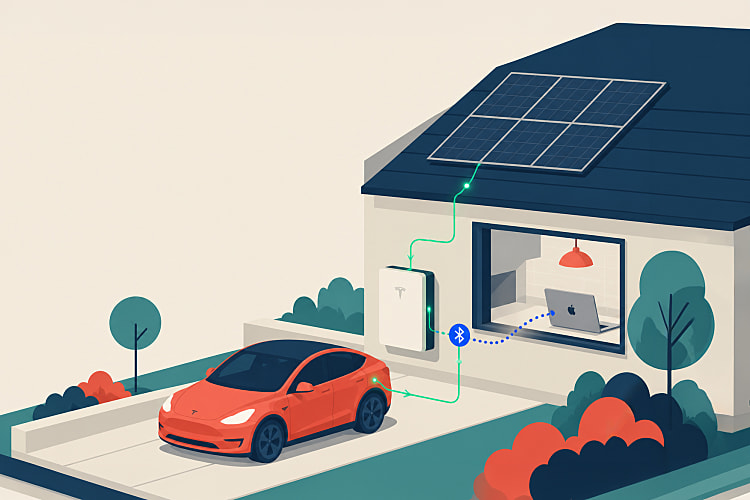

Did You Know You Can Control Your Tesla Car From Your MacBook?
15th September 2026 • 12 min read — by Aleksandar Trpkovski
Play audio summary
I bought my electric vehicle not long ago. I wanted to switch to full electric, partly inspired by high petrol prices, but mostly because I'm a technology enthusiast and I'm genuinely amazed by what modern car software can do. I ended up with a Tesla Model Y Juniper.
This car is unlike anything I've owned before. What makes it special isn't the futuristic look - it's the software. It feels less like a car and more like a smart device on wheels. Because it receives regular over-the-air updates, it actually improves over time, like a phone operating system where one morning you update and suddenly there are new features waiting for you.
Around the same time, I'd been building out my home automation. Not the off-the-shelf kind, but something genuinely smarter than most of what you can buy. It pulls together a few different sources: how much solar I'm producing and at what time of day, what the home battery is doing, and a set of rules on top that decide when it makes sense to charge the car.
One piece was missing. I had no way to read the car's battery level.
That sounds like it should be trivial. It isn't, and the reason turned out to be more interesting than I expected.
Your Charger Has No Idea How Full Your Car Is
Here's something that surprised me when I started digging.
The charging standard that cars and chargers use to talk to each other simply doesn't communicate battery state of charge. Your wall box knows how much power it's delivering and how much energy has flowed. It knows nothing at all about the battery on the other end of the cable.
So if you want state of charge, the number has to come from the car itself. There's no way around it. That sent me looking for a way to ask the car directly, and that's when I found something I genuinely didn't expect.
Tesla Open-Sourced the Answer
Tesla maintains a public repository called vehicle-command.
This is Tesla's own code. Not a community project built by watching network traffic, not a scraped API that might break next Tuesday. It's an official, open-source Go SDK and command-line tool for talking to Tesla vehicles, published by Tesla, with nearly 700 stars and active maintenance.
And here's the part that made me sit up: it talks to the car over Bluetooth.
Not through Tesla's servers. Not through a developer account, an API key, or a billing plan. Directly, from your computer to your car, over a local connection.
The concept is elegant. Your Tesla already accepts several kinds of keys - your phone, your key cards. This tool lets you add your MacBook as another key, exactly the same way you'd add a phone. You assign it a role, which determines what it's allowed to do, and from then on your laptop can talk to the car.
This is Tesla publishing their own protocol implementation so owners can talk to their own cars locally. It's a genuinely open gesture, and I don't think enough people know it exists.
Prerequisites
You'll need a few things before starting:
- A Mac or Linux machine. Windows isn't supported for the Bluetooth parts.
- Homebrew to install the Go toolchain.
- Your car's VIN. Find it in the Tesla app, on the lower corner of your windscreen, or on the car's screen under Controls -> Software.
- Your NFC key card. The physical card that came with the car. You need it once, to authorise the pairing.
- To be physically near the car. This runs over Bluetooth, so range matters. I'll come back to this, because it's the single most important practical constraint.
What We're Building
Here's the structure we'll end up with. It's deliberately simple - two directories and a public key file:
tesla-control/
├── vehicle-command/            # Tesla's official repo, cloned and built
│   └── cmd/
│       ├── tesla-control/      # sends commands, reads status
│       └── tesla-keygen/       # creates your key pair
└── keys/
    └── public_key.pem          # safe to share; the private half lives in your Keychain
The compiled tools end up in ~/go/bin, so you can run them from anywhere once that's on your PATH.
Getting Started: Installing the Tools
The tooling is written in Go, so let's start there:
brew install go
Now, a small trap that will catch you if you're used to Go tooling. The obvious next command does not work:
go install github.com/teslamotors/vehicle-command/cmd/...@latest
It fails with a complaint about "replace directives". That's a Go packaging rule rather than a problem with Tesla's code - the project pins a Bluetooth dependency, and go install refuses modules that do that. The fix is to clone the repository and build it from inside:
git clone https://github.com/teslamotors/vehicle-command.git
cd vehicle-command
go build ./...
go install ./...
That produces several tools in ~/go/bin. Two of them matter for us:
tesla-keygencreates the key your Mac will usetesla-controlsends commands and reads status
Let's check it worked:
tesla-control -h
If you see a wall of available commands, you're ready.
Configuring the Project
Rather than typing the same flags over and over, the tools read a few environment variables. Add these to your shell profile:
export TESLA_KEY_NAME=tesla
export TESLA_VIN=YOUR_VIN_HERE
export TESLA_CACHE_FILE=~/.tesla-cache.json
That third one is a nice touch. It caches the encrypted session between commands, so repeat calls skip the handshake and respond noticeably faster.
Now let's generate the key:
mkdir -p keys
tesla-keygen create > keys/public_key.pem
This creates a key pair, and it's worth being precise about the two halves, because this is the thing people most often get muddled:
- The private key is stored in your macOS Keychain. This is the actual secret. It is a car key. Never share it, never commit it, and never post it publicly.
- The public key is written to
keys/public_key.pem. This is the half you hand to the car. It's harmless to share.
The public key is derived from the private key, and you can't work backwards from one to the other. Only the public half ever leaves your machine.
Adding Your Mac as a Key
This is the only step where you need to be physically in the car with your key card.
Sit in the driver's seat with your laptop, and run:
tesla-control -ble add-key-request keys/public_key.pem driver cloud_key
Then, immediately:
- Tap your NFC key card on the card reader. On a 2025+ Model Y (Juniper), this is the wireless phone charging pad, not the older position below the touchscreen.
- Confirm the prompt that appears on the car's screen.
That's it. Your MacBook is now a key.
If nothing happens, run the command again and re-tap. It's completely retryable - mine worked on the second attempt.
You'll find the new key on the car's screen under Controls -> Locks -> Keys, initially named something unhelpful like "Unknown key". Tap the pencil icon and rename it to something recognisable.
Adding a key is not the same as adding a driver. A driver is a person with a Tesla account, added through the app. A key is a credential stored on the car itself. Pairing your laptop doesn't give anyone account access or share your vehicle with anybody.
Choosing the Right Role
Notice the word driver in that command. That's the role, and it determines what your laptop is permitted to do. Tesla supports several:
| Role | What it can do |
|---|---|
owner | Everything, including managing other keys |
driver | Full vehicle control - unlock, drive, climate, charging |
fm | Fleet manager |
vehicle_monitor | Read-only monitoring |
charging_manager | Charging control and basic status. Cannot unlock or drive. |
Think about this properly rather than defaulting to the most powerful option. A key with the driver role can unlock and drive your car. If you're building a charging automation that only reads a battery percentage, charging_manager does everything you need while being far less dangerous if your laptop is ever stolen.
I used driver because I wanted to explore the full command set for this article. For the automation I'm actually building, I'll narrow it down later.
Reading the Status
The moment of truth:
tesla-control -ble state charge
You get back a block of JSON, and inside it:
{
    "chargeState": {
        "batteryLevel": 86,
        "usableBatteryLevel": 86,
        "chargeLimitSoc": 100,
        "chargeLimitSocStd": 80,
        "chargingState": { "Disconnected": {} },
        "batteryRange": 231.42,
        "chargeCurrentRequest": 16,
        "chargeCurrentRequestMax": 16
    }
}
86%. Read from my car, over Bluetooth, from my own laptop, with no cloud service anywhere in the middle.
That single number is the missing piece my home automation needed.
A couple of things worth noticing in that response. chargeLimitSoc is my current limit while chargeLimitSocStd is the recommended daily one. And chargingState arrives as a nested object rather than a plain string, because the underlying protocol uses tagged unions - something to keep in mind if you're parsing this programmatically.
Careful with this output. The response to
state chargealso includeshomeLocationandworkLocationas exact GPS coordinates. Nothing about a command named "charge" suggests it hands back where you live and work. If you're going to share output publicly, strip those fields first.
You Need to Be Close: The Bluetooth Range Reality
This is the constraint that decides whether the approach suits you, so let's be honest about it rather than glossing over it.
Bluetooth range is roughly 10 to 30 metres, and considerably less through brick walls. Your Mac has to be close enough to the car, full stop.
I measured the signal strength from where my laptop normally sits indoors and got about -83 dBm. That's on the weak side of usable. Every command still worked from that spot, but with little headroom - so anything running unattended should retry rather than assume a single attempt succeeds.
What's Good About the Laptop Approach
- Costs nothing. No hardware to buy, no subscription, no developer account.
- Completely local. Your data doesn't travel through anyone's servers.
- No rate limits and no per-command charges.
- Set up in an afternoon, and you learn the protocol properly along the way.
What's Not So Good
- Only works when you're home and your Mac is awake.
- Range is genuinely marginal through walls, so you need retry logic.
- A laptop that travels with you is a laptop that stops being a car key when you leave.
If you want something running reliably around the clock, a small ESP32 board sitting in the garage running esphome-tesla-ble is the better answer. It's about fifteen dollars and speaks the same protocol. But I'd still start here, because it costs nothing and tells you whether you need the hardware at all.
Two Things That Confused Me at First
Both of these had symptoms that pointed in completely the wrong direction, so they're worth knowing about in advance.
Your Terminal App Matters
I spent an embarrassing amount of time on this one. Every Bluetooth command died instantly with:
Abort trap: 6
No error message. No explanation. Nothing useful in the logs. I assumed my build was broken, then that the pairing had failed, then that my car was out of range.
The actual cause was my terminal. I use Warp, and macOS requires an application to declare that it wants Bluetooth access before it will grant it. Warp doesn't declare it, so macOS silently terminated the process instead of showing a permission prompt.
Running the identical command in Apple's built-in Terminal.app works perfectly.
So if you hit a mysterious Abort trap: 6 with no output, it isn't your setup - it's your terminal. Switch to Terminal.app and try again.
The Car Sleeps, and Won't Wake Itself
Teslas go to sleep after roughly ten to fifteen minutes of inactivity to conserve battery. When the car is asleep, this happens:
tesla-control -ble state charge
# Couldn't verify success: context deadline exceeded
That reads like a connection failure, and I initially went hunting for range problems. It isn't. The car is simply asleep, and the command won't wake it for you. You have to ask explicitly:
tesla-control -ble wake
tesla-control -ble state charge   # now it works
There's a subtlety here that matters a lot if you're automating. The car has two computers: an always-on security controller, and the main infotainment computer that sleeps. Battery level lives on the sleeping one, which means every battery reading wakes your car.
There's no command to put it back to sleep. It only sleeps when you stop talking to it.
So don't poll for battery percentage every minute - you'll hold the car permanently awake and cause real battery drain. Instead, use this command, which talks to the always-on controller and doesn't wake anything:
tesla-control -ble body-controller-state
Use that for cheap, frequent checks, and only ask for the battery when you're genuinely about to make a decision. That pattern is the whole design of my charging automation.
What Else Can You Do? Rather a Lot
Here's where it gets fun. tesla-control ships with 69 commands, and 65 of them work over Bluetooth with no cloud account at all. Only four require Tesla's Fleet API.
I went in expecting a status reader. What I found was near-complete control of the car.
Reading status comes in twelve categories:
tesla-control -ble state charge
tesla-control -ble state climate
tesla-control -ble state drive
tesla-control -ble state closures
tesla-control -ble state tire-pressure
tesla-control -ble state software-update
tesla-control -ble state media
Climate control, so you can warm the car before you leave the house:
tesla-control -ble climate-on
tesla-control -ble climate-set-temp 21
tesla-control -ble seat-heater front-left 3
tesla-control -ble steering-wheel-heater on
Charging, which is the whole point of my project:
tesla-control -ble charging-start
tesla-control -ble charging-stop
tesla-control -ble charging-set-limit 80
tesla-control -ble charging-set-amps 16
tesla-control -ble charge-port-open
Locks and closures:
tesla-control -ble lock
tesla-control -ble unlock
tesla-control -ble trunk-open
tesla-control -ble frunk-open
tesla-control -ble windows-vent
tesla-control -ble windows-close
And yes, you can start the car:
tesla-control -ble drive
That's remote start. Your laptop is a key with the driver role, so the car will let you drive away.
Plus the genuinely silly ones, which are of course the first things anyone tries:
tesla-control -ble flash-lights
tesla-control -ble honk
tesla-control -ble sentry-mode on
tesla-control -ble media-volume-up
Sitting at my kitchen table making the car honk in the driveway was, I'll admit, the highlight of the afternoon 🙂
Managing and Removing Keys
Since you've just given a laptop the ability to drive your car, it's worth knowing how to take that away again.
To see everything the car currently trusts:
tesla-control -ble list-keys
Mine lists a Tesla service key, two key cards, two phones, and now my MacBook - each with its role and form factor.
To remove a key:
tesla-control -ble remove-key keys/public_key.pem
The most important method needs no software at all. If your laptop is ever lost or stolen, go to the car and use Controls -> Locks -> Keys, then tap the trash icon next to the key. It works instantly, even without the laptop, and it should be the first thing you do.
One neat detail: adding a key using an existing authorised key doesn't require the card tap. So you can swap a driver key for a more restricted charging_manager one from your desk, without going anywhere near the car. Add the new one, verify with list-keys, then remove the old one. Permissions only ever narrow.
More Than Just Cars: Tesla's Other Open Source Projects
Finding vehicle-command sent me down a rabbit hole. Tesla's GitHub organisation at github.com/teslamotors has around 65 public repositories, and several are far more interesting than you'd expect from a car company.
A few worth exploring:
- light-show - Their most popular repository by a wide margin, at nearly 4,000 stars. Official tooling for building custom light shows: choreograph the headlights, indicators, windows and charge port to music, save it to a USB stick, and run it on your car. Whole communities exist around sharing these.
- custom-wraps - Templates for designing your own vehicle wrap. Not a physical one - this changes the 3D model of your car in the app and on the car's own display. Draw something, export a PNG, upload it through the app.
- dashcam - Tools for extracting hidden metadata from your dashcam footage: vehicle speed, steering wheel angle, and self-driving state, embedded frame by frame. There's a browser-based explorer where you drag in an MP4 and everything runs locally.
- fleet-telemetry - The grown-up version of what I've built here. Instead of asking the car for data, vehicles push telemetry to a server you run, over a WebSocket. Better suited to fleets, or to anyone wanting continuous history rather than point-in-time readings.
- ttpoe - A genuine curiosity. The Tesla Transport Protocol over Ethernet, released as a Linux kernel module with a full specification. This is Tesla open-sourcing part of the networking stack behind their compute infrastructure.
- roadster - Development and diagnostic software for the 2008 to 2012 Roadster. A lovely gesture: keeping the original car serviceable by publishing the tooling for it.
- fixed-containers - C++ containers with no dynamic memory allocation, exactly what you need in safety-critical embedded code. It tells you something about how the car's software is built.
Where I landed
I started out just wanting one number - the battery percentage - so my home automation could decide when to charge from solar.
I got that. But I also got a much better appreciation of how open Tesla has been here. This isn't a tolerated community hack. It's Tesla publishing their own protocol implementation and letting owners talk to their own cars, locally, without going through anyone's servers.
The whole setup took an afternoon, most of which was spent chasing a bug that turned out to be my terminal app.
Next up: wiring this into my solar automation, so the car charges when the panels are producing and the home battery is happy. That's the next article.
Further Reading
Explore more articles that might interest you.